
If you’ve ever Googled “Google Analytics vs. Google Search Console” and walked away more confused than when you started, you’re not alone. These two tools get mixed up constantly, even by people who’ve been doing digital marketing for years.
Here’s the quick version: Google Analytics tells you what users do on your site. Google Search Console shows how Google sees your site in search results. Same ecosystem, two completely different jobs.
If you want to actually use both tools effectively and stop leaving insights on the table, you need to understand what each one does, where they overlap, and how they work together. Let’s break it down.
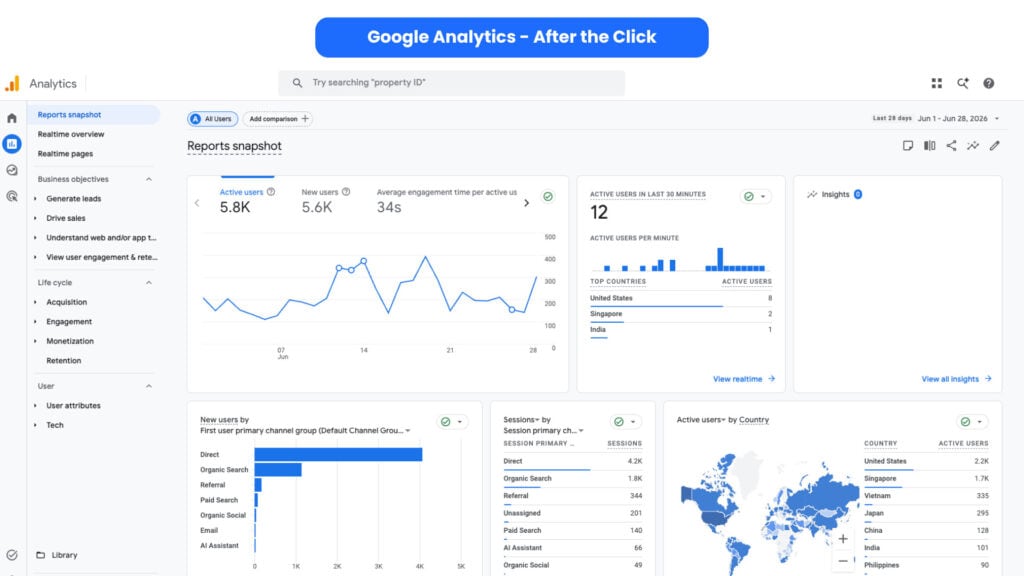
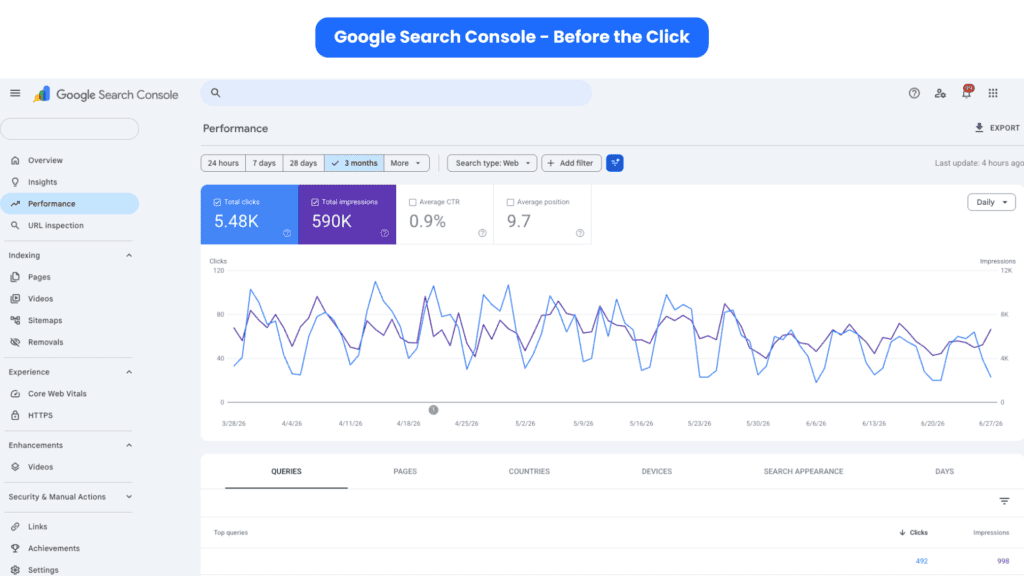
What's the Difference Between Google Search Console and Google Analytics?
The clearest way to frame it:
Google Analytics is your audience lens. Who visited, where they came from, what they clicked, how long they stuck around, and whether they converted.
Google Search Console is your search engine lens. How your pages perform in Google search results — impressions, clicks, average position, indexing status, and technical errors.
A good way to think about it: most of what GSC provides relates to what happens before users land on your website, and GA4 provides the key data after users have arrived. Together, they give you the full picture. Separately, each one answers a very specific set of questions.
Quick Reference: GSC vs. Google Analytics
| Question | Google Analytics | Google Search Console |
|---|---|---|
| Who visited my site? | ✅ | ❌ |
| Where did traffic come from? | ✅ | ❌ |
| Which keywords get impressions? | ❌ | ✅ |
| What’s my click-through rate in search? | ❌ | ✅ |
| Are my pages indexed? | ❌ | ✅ |
| What do users do on my site? | ✅ | ❌ |
| Are there crawl errors? | ❌ | ✅ |
| Which pages convert? | ✅ | ❌ |
| Core Web Vitals | ❌ | ✅ |
| Backlink data | ❌ | ✅ |
| Google Ads integration | ✅ | ❌ |
What is Google Analytics (GA) Used For?
Google Analytics is a data collection and analytics platform that tracks user behavior across your site. It pulls data from multiple sources — organic search, social media, email, referrals, direct visits, paid ads — and organizes it into reports you can actually act on.
The central question GA4 answers: “What did people do after they got here?”
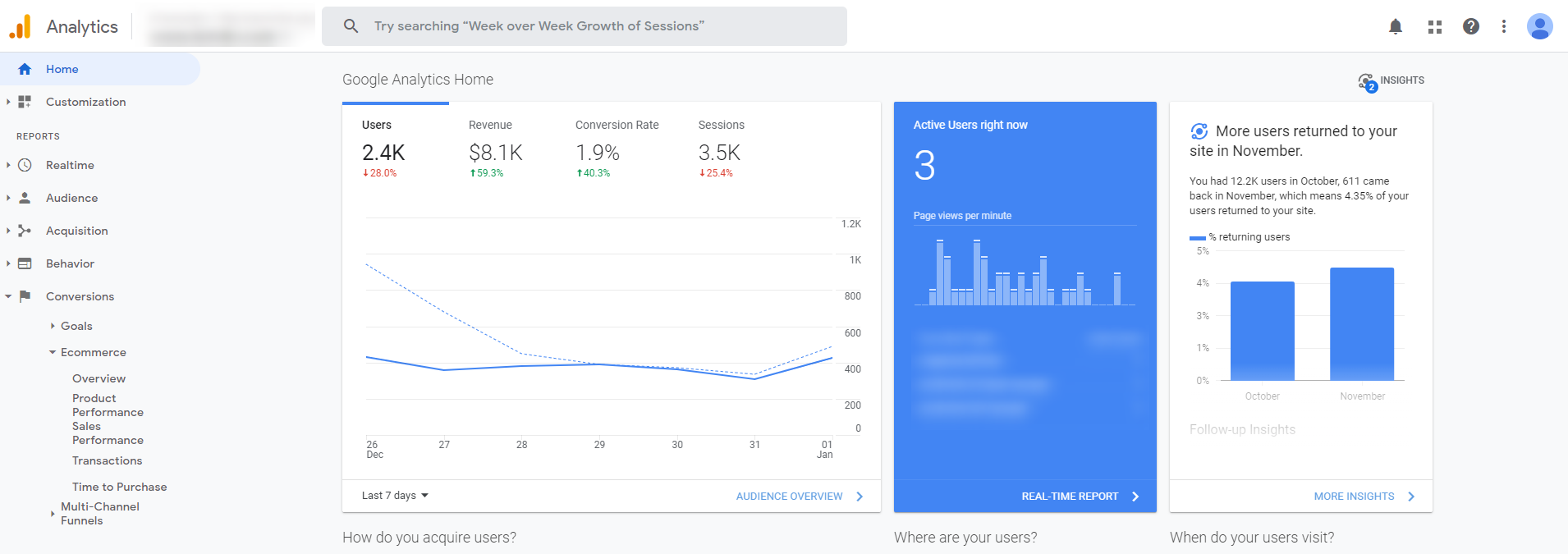
1. Audience Demographics
This is where you learn who’s actually showing up. Age, location, device type, browser — GA4 surfaces all of it. The more you know about your visitors, the better you can develop content and campaigns that actually speak to them.
You can also compare date ranges within specific segments. Made a change to your homepage? Pull a before-and-after comparison and see if it moved the needle.
2. Acquisition: Where Your Traffic Comes From
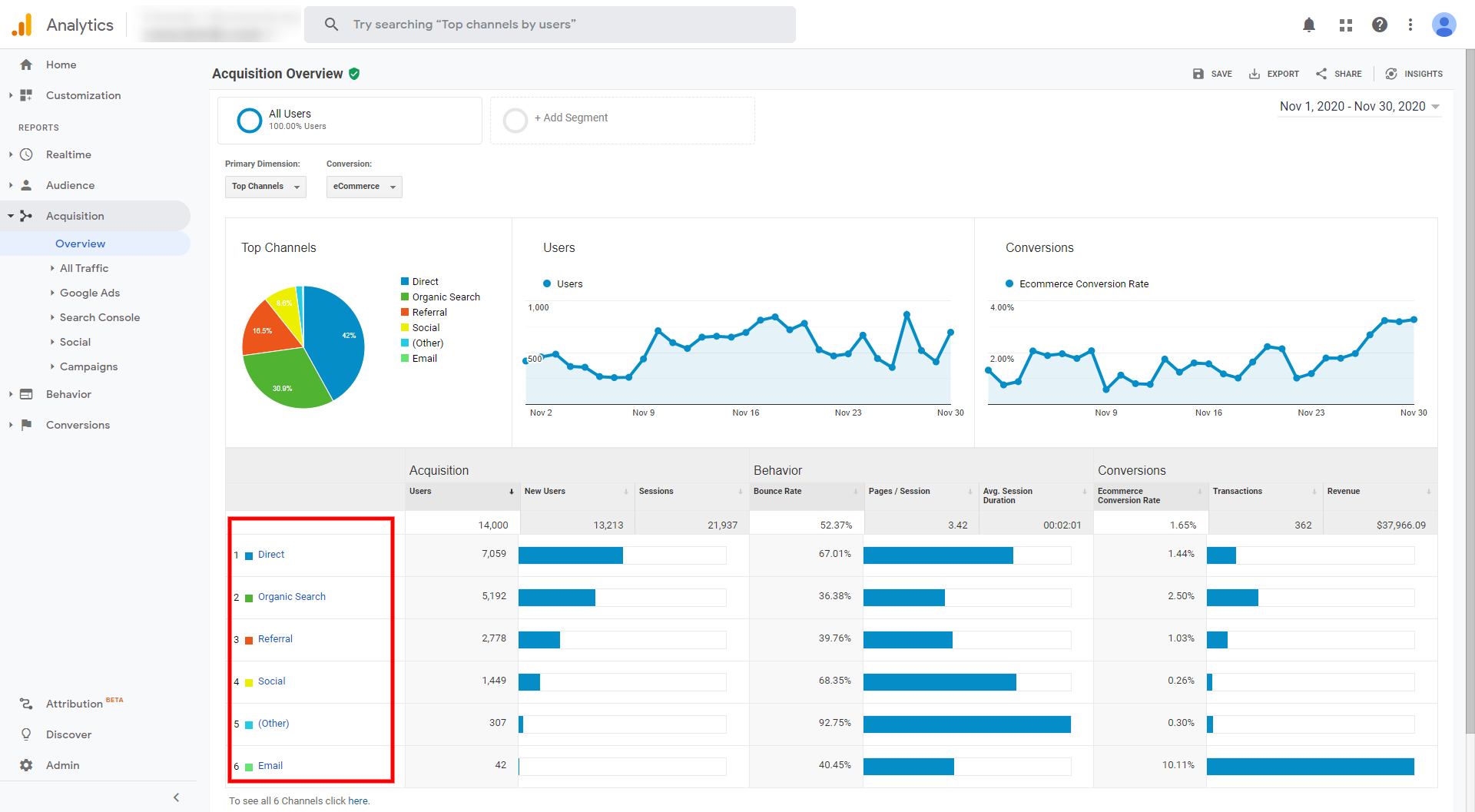
The Acquisition section tells you exactly how visitors found you:
- Organic Search: showed up in Google results for a keyword
- Direct: typed your URL straight in
- Referral: clicked through from another website
- Social: came from LinkedIn, Instagram, etc.
- Email: clicked a link in a campaign
- Paid: came from Google Ads or another paid channel
This is critical for diagnosing whether your SEO, paid ads, social, or email efforts are actually driving traffic. If you’re spending money on Google Ads, this is where you confirm whether those clicks are actually converting or just burning budget.
3. User Behavior
This is one of the most valuable sections in Google Analytics. The Behavior Flow report shows you the path visitors take through your site — where they enter, where they go next, and where they drop off.
If a key service page has a high exit rate, you can see it here. If a blog post is driving visitors straight to your contact form, you’ll see that too. Use this to improve the user experience and build smarter internal linking paths.
The Site Content report breaks down how individual pages perform: pageviews, time on page, bounce rate, and page value. Landing Pages and Exit Pages are the two most actionable sub-reports — check them often.
4. Conversions
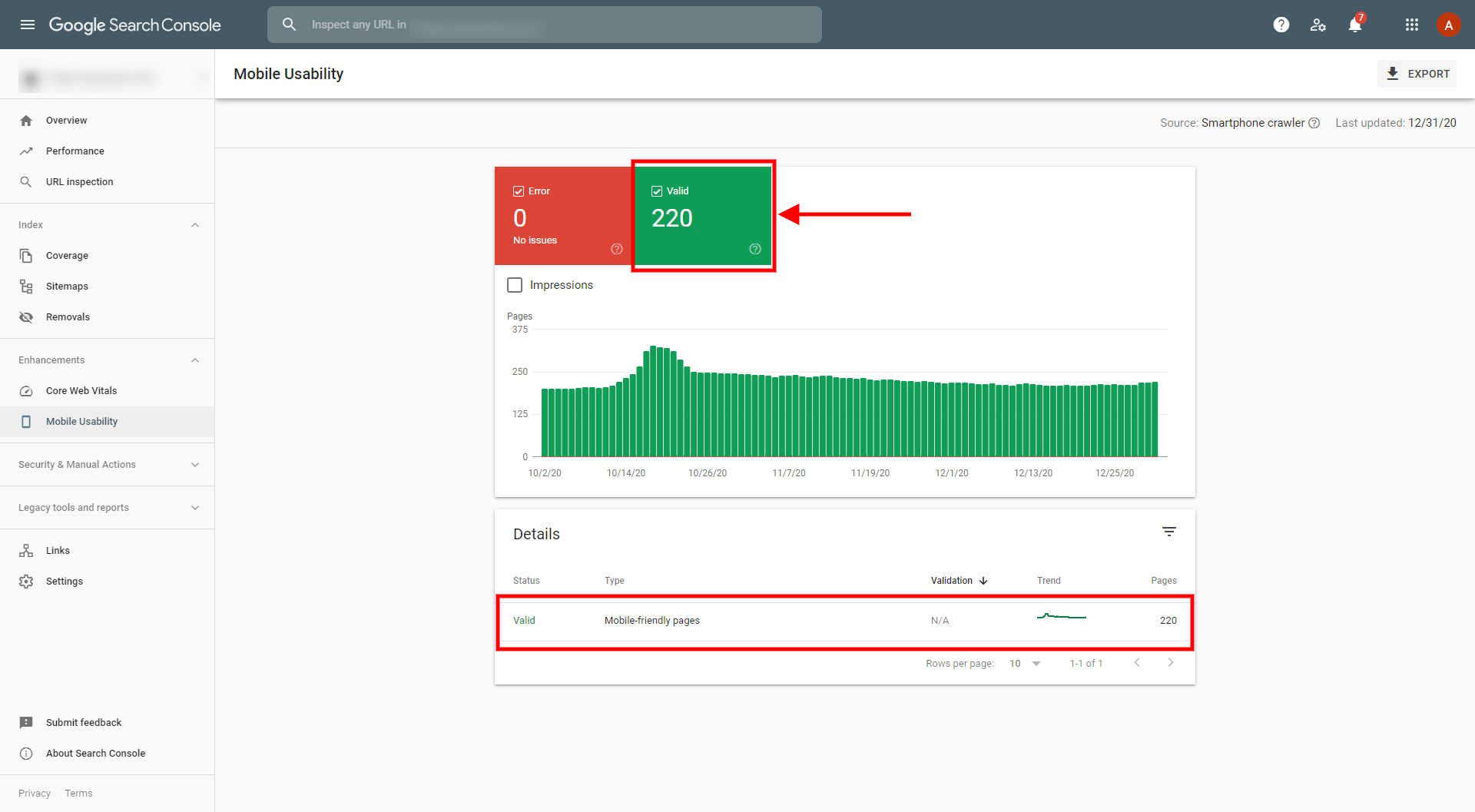
This is where things get serious. Set up conversion tracking correctly in GA4, and you’ll know exactly which organic search query, ad click, or email sends people to a form fill or a purchase.
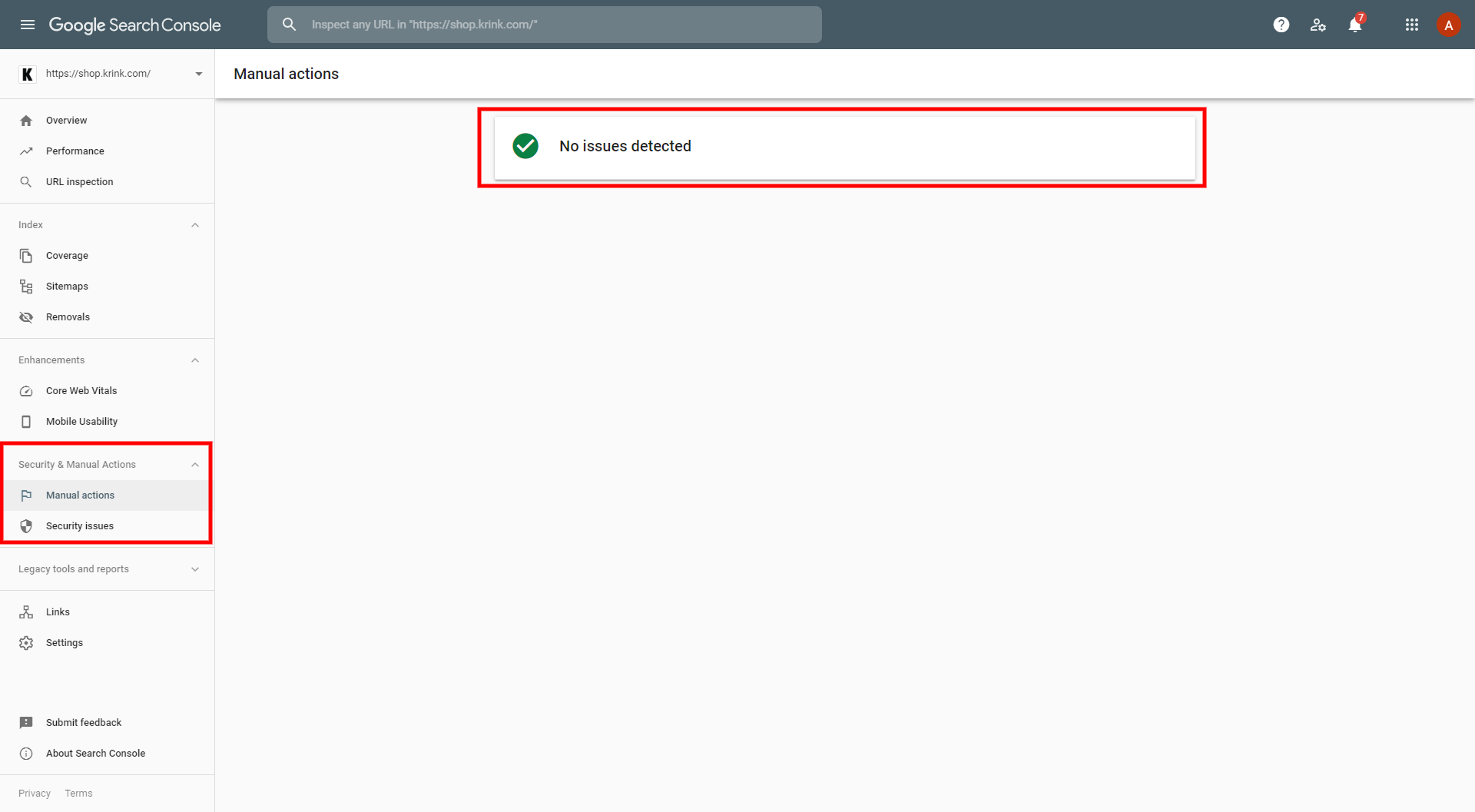
GA4 tracks user interactions as “events”: page views, downloads, button clicks, form submissions, and video plays. You mark the ones that matter as conversions. From there, you can filter almost any report by conversion data.
One thing that trips people up: conversion tracking in Google Analytics is not retroactive. Set it up the moment your site goes live, not six months later when you realize you’ve been flying completely blind.
PRO TIP
5. Custom Dashboards and Reports
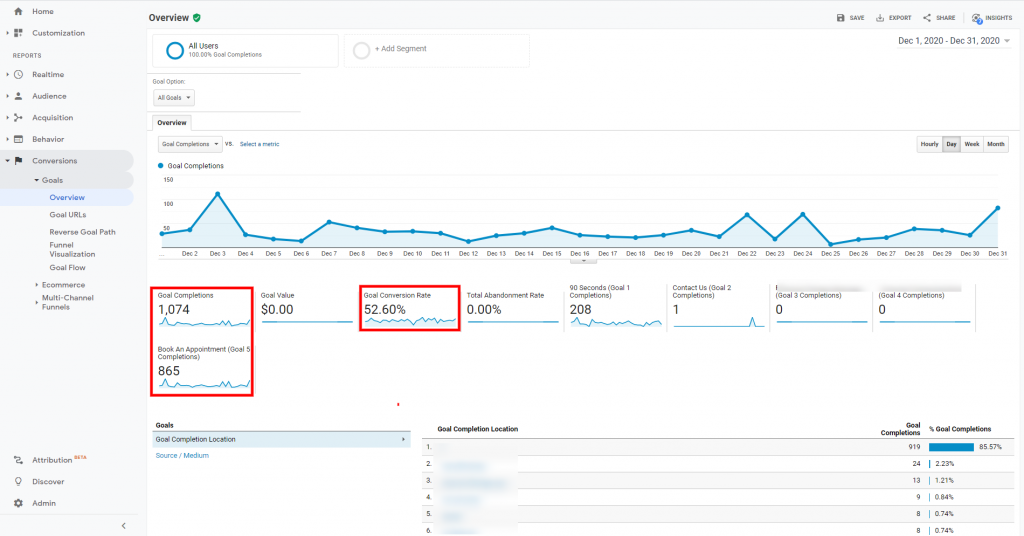
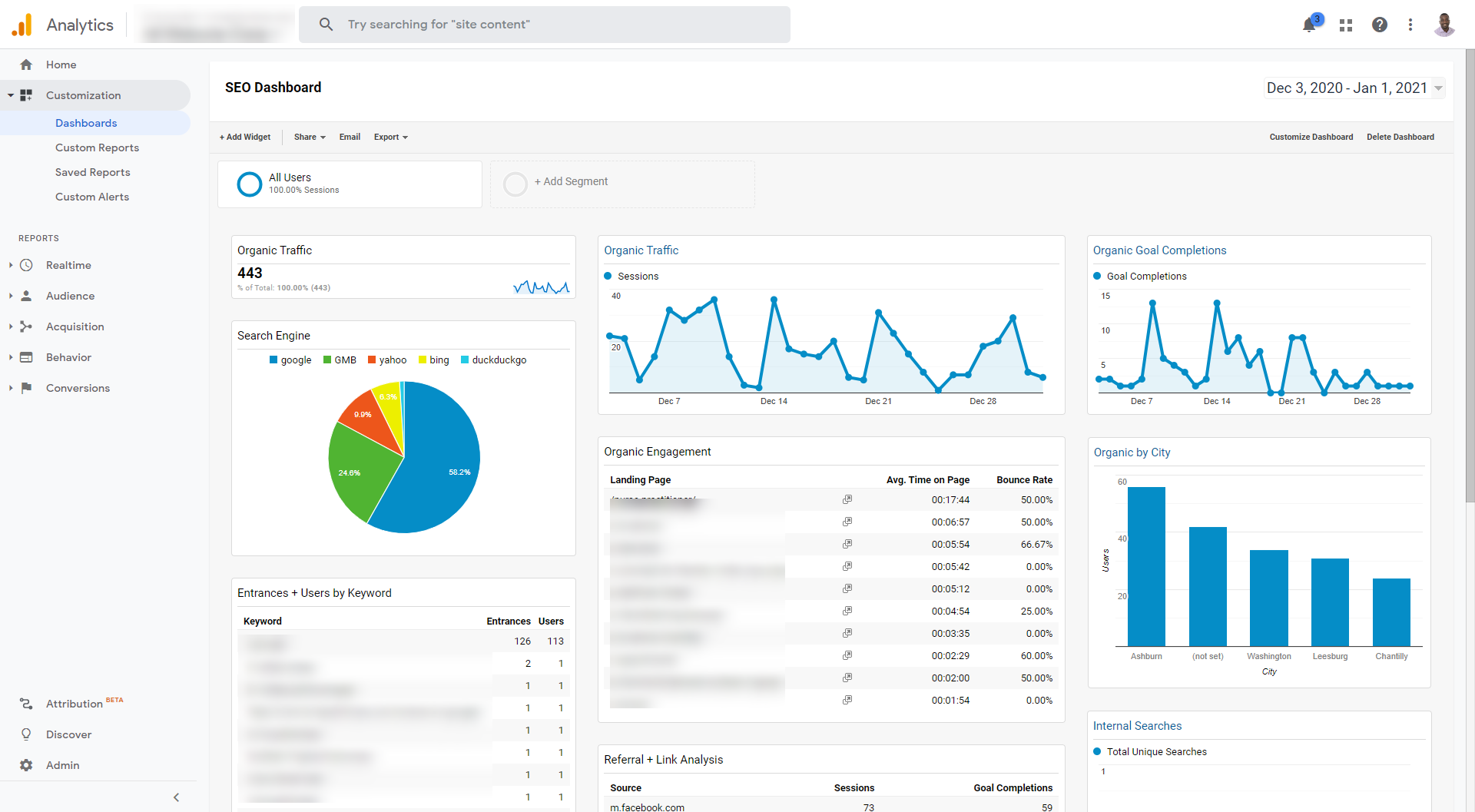
GA4 lets you build custom reports that surface only the metrics that matter. Skip the noise. Focus on what moves the business. If you’re managing multiple clients or reporting to stakeholders, custom dashboards aren’t optional; they’re how you stay sane.
What Is Google Search Console Used For?
Google Search Console is where you see your site the way Google sees it. Every day, Google is crawling your pages, deciding which ones to index, and determining where they rank for different search queries. GSC makes that process visible.
The central question GSC answers: “How is Google interacting with my site, and how does it perform in search?”
1. The Performance Report
This is the heartbeat of Google Search Console. Check it regularly and you’ll know exactly which pages are earning organic traffic, which keywords they’re ranking for, and where there’s room to improve.
Key metrics in the Performance report:
- Impressions: how many times your pages appeared in Google search results, even without a click
- Clicks: how many times someone actually clicked through to your site
- CTR (Click-Through Rate): the percentage of impressions that turned into clicks
- Average Position: your mean ranking for a given search query
- Search Queries: the actual terms people used to find you (this data is only in GSC, not Google Analytics)
What Good Performance Metrics Look Like
| Metric | What to Look For | Red Flag |
|---|---|---|
| CTR | 3–5%+ for top positions | Under 1% with high impressions |
| Average Position | Top 10 for target queries | Positions 11–20 = page 2 purgatory |
| Impressions | Growing over time | Sudden drops month-over-month |
| Clicks | Tracking with impressions growth | Impressions up, clicks flat |
One newer feature worth knowing: GSC now includes a branded vs. non-branded query filter, which lets you separate traffic from people already searching for your company by name versus people finding you through generic terms. That distinction matters a lot for understanding whether your content is actually reaching new audiences or just recirculating existing ones.
Also relevant for anyone paying attention to AI search: data from AI Mode is now counting toward the totals in the Search Console Performance report, and Google has clarified that AI Overviews are counted and logged in Search Console similarly to featured snippets and carousels. If you’re seeing impressions climb without a corresponding increase in clicks, AI Overviews may be part of the explanation. People are getting their answer in the search result without clicking through.
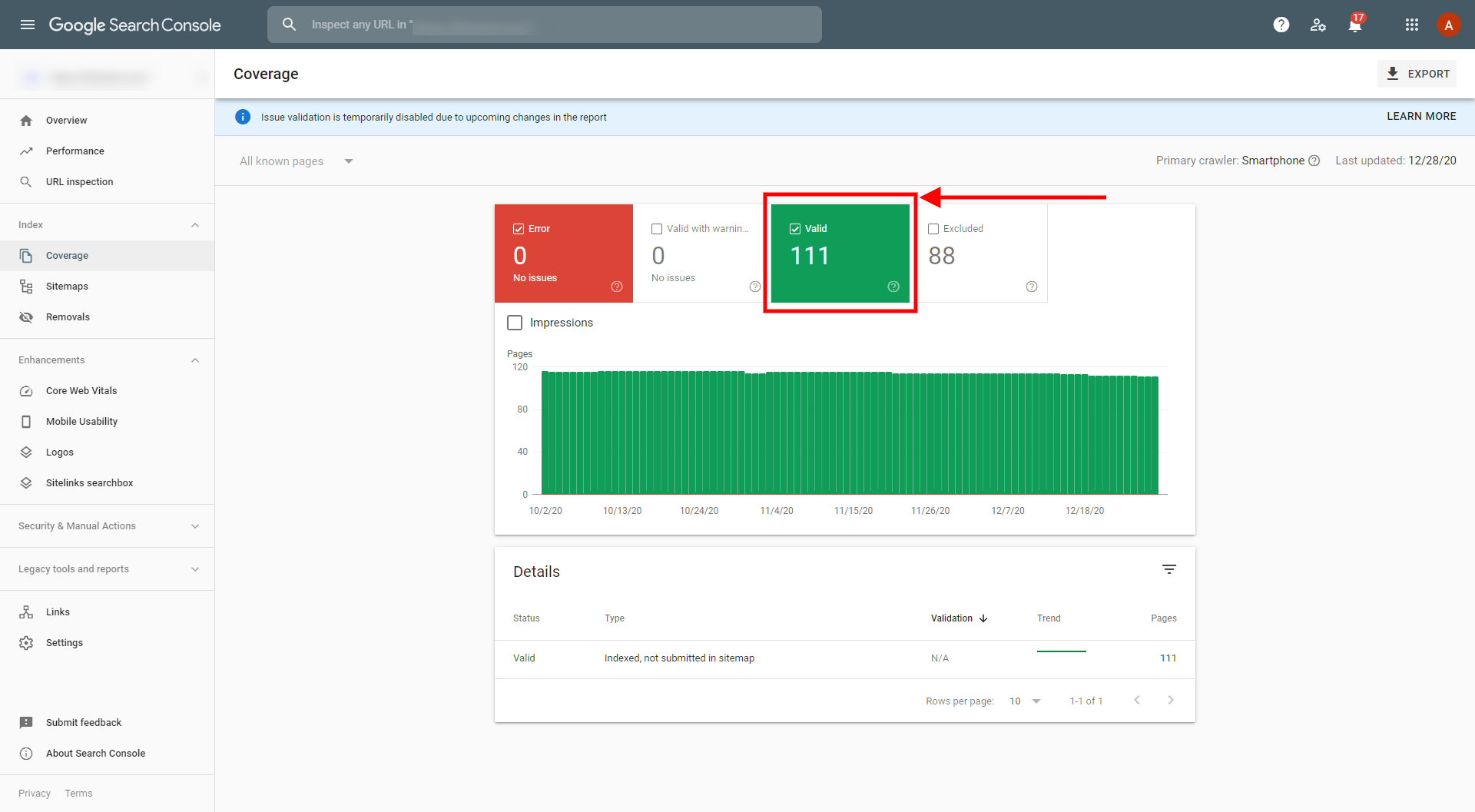
2. Index Coverage
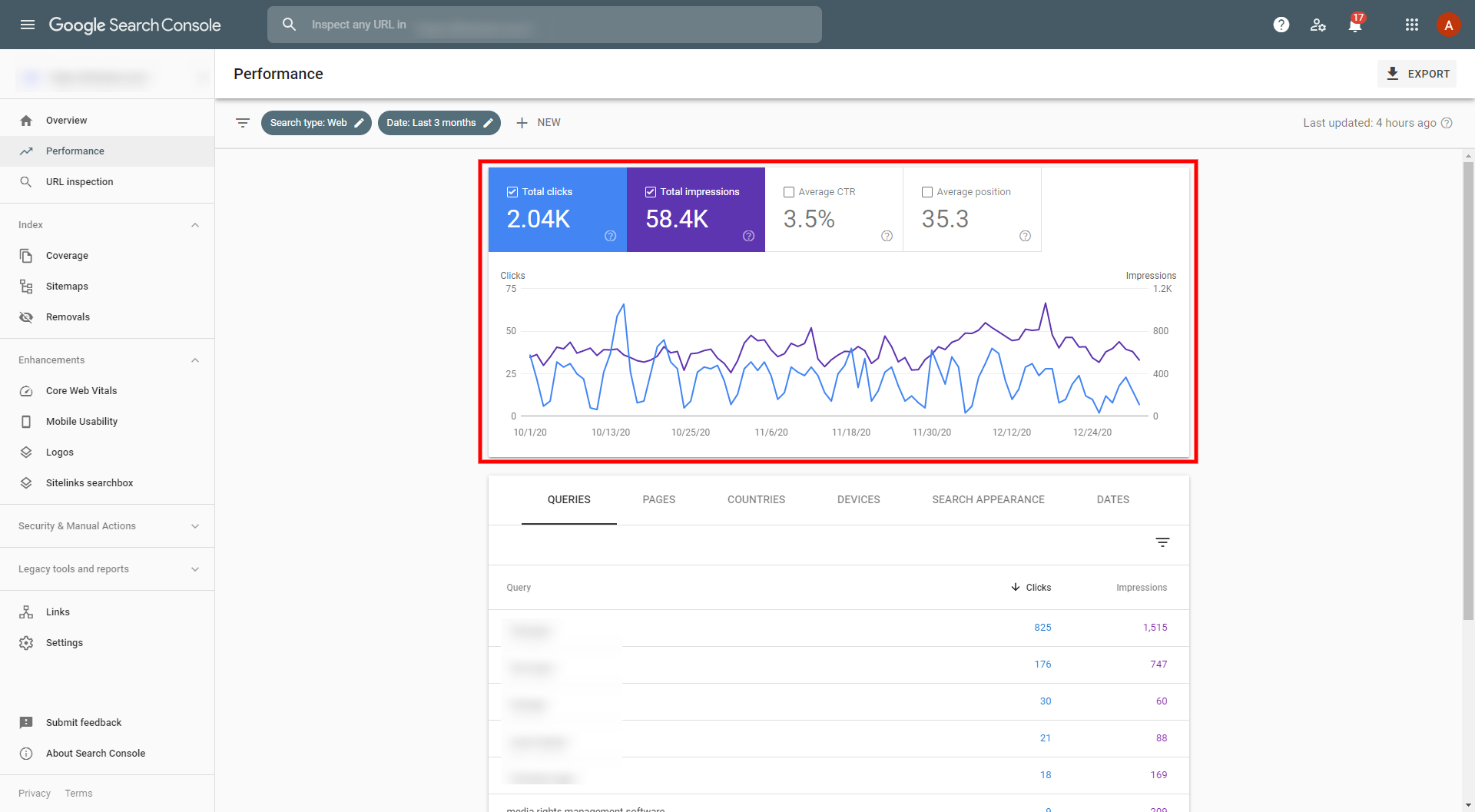
This section tells you which pages Google has indexed and which ones have problems. If a page isn’t indexed, it doesn’t exist in search. Simple as that.
Status types you’ll see:
- Error: server errors, 404s, noindex directives blocking the page
- Valid with warnings: technically indexed but something’s off
- Valid: indexed and eligible to appear in search results
- Excluded: intentionally kept out of the index
Sudden drops in indexed pages mean Google lost access to something. Unexpected spikes can mean duplicate content or auto-generated pages are getting indexed when they shouldn’t be.
PRO TIP
3. Sitemaps and Removals
Your sitemap tells Google which pages to crawl and prioritize. If you’re regularly publishing new content, keeping your sitemap updated helps Google find it faster. This isn’t glamorous work, but neglecting it is one of the most common reasons new content takes forever to show up in search results.
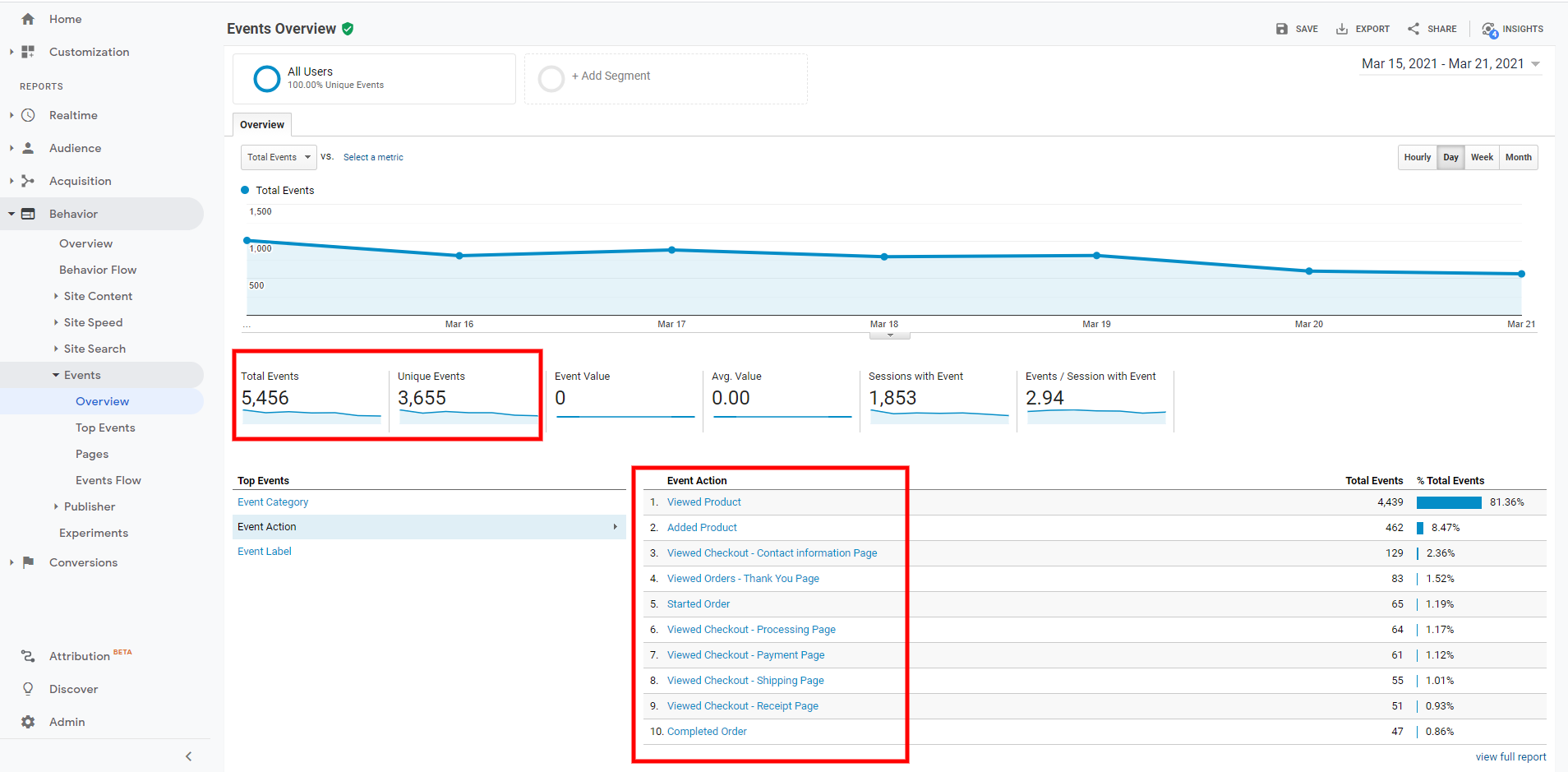
4. Core Web Vitals and Site Enhancements
Google has been explicit that page experience is a ranking factor. This section surfaces data on:
- Core Web Vitals: loading speed (LCP), interactivity (INP), and visual stability (CLS)
- Mobile Usability: flags design or development issues that hurt the mobile experience
- Schema/Structured Data: shows how any schema markup is being interpreted
If your Core Web Vitals report is full of red “Poor” URLs, that’s not just a user experience problem — it’s a search performance problem.
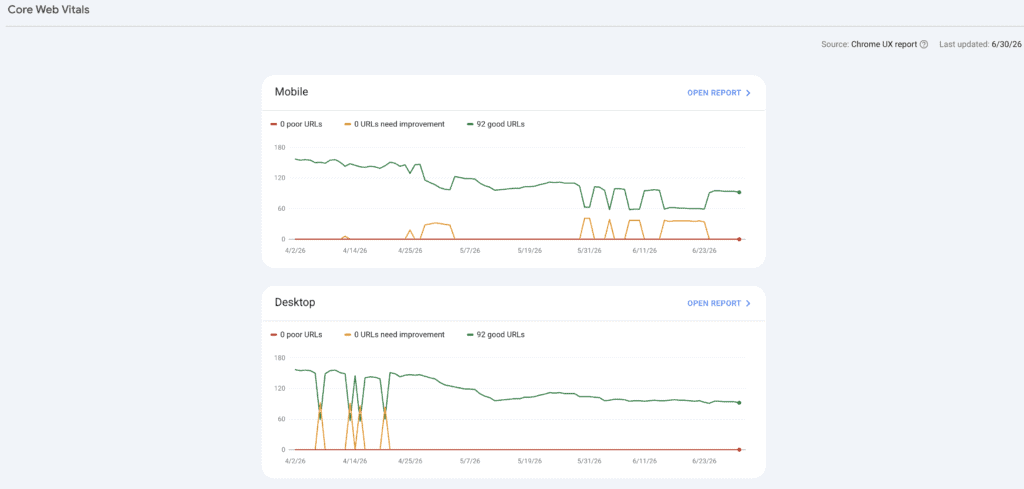
5. Security and Manual Actions
The section you hope you never need but should check regularly. Manual actions are penalties imposed by Google’s human reviewers for violations such as unnatural link patterns, cloaking, or thin content. A manual action can drop your search traffic significantly, overnight.
Security Issues flags hacking attempts — injected code, phishing pages, malware. If you see anything flagged here, treat it as urgent.
6. Inbound and Outbound Links
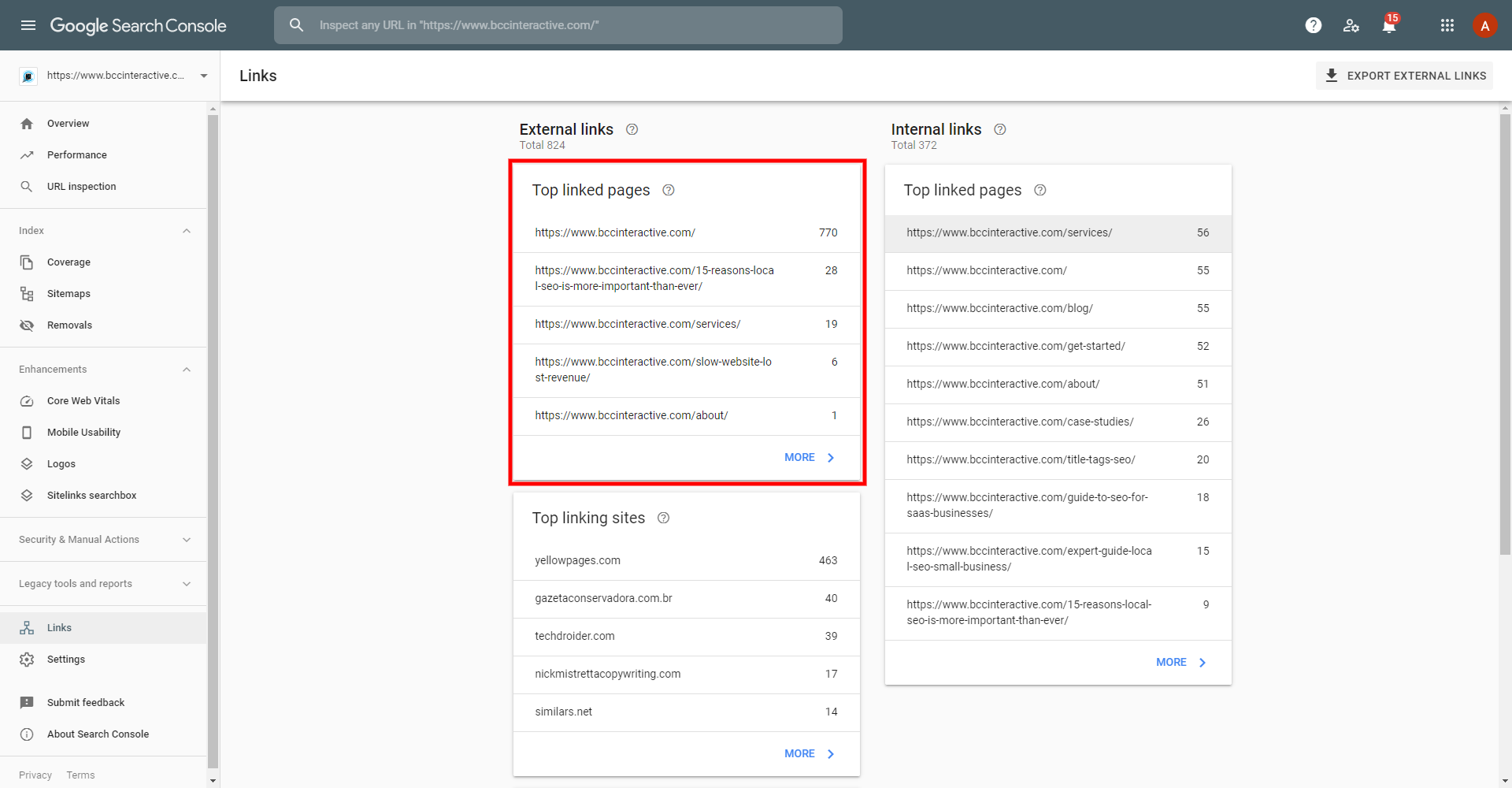
The Links section in Google Search Console shows which sites are linking to yours and what content they’re pointing to. Backlinks are still one of the most important signals in Google’s algorithm — this report tells you what kind of link equity you’re building.
Internal links are just as important. GSC’s internal links report shows how your pages are connected. If your highest-priority service pages aren’t getting linked internally, Google may not be treating them as high-priority either.
Key Differences Between Google Search Console and Google Analytics: Side-by-Side
| Feature | Google Analytics | Google Search Console |
|---|---|---|
| Primary focus | On-site user behavior | Search engine performance |
| Data source | All traffic channels | Google Search only |
| Keyword data | Limited | Full query data |
| Session and behavior data | ✅ Full | ❌ None |
| Conversion tracking | ✅ Yes | ❌ No |
| Indexing status | ❌ No | ✅ Yes |
| Crawl errors and technical issues | ❌ No | ✅ Yes |
| Core Web Vitals | ❌ No | ✅ Yes |
| Backlink data | ❌ No | ✅ Yes |
| Google Ads integration | ✅ Yes | ❌ No |
| Historical data retention | Up to 14 months (free) | 16 months |
| Real-time data | ✅ Yes | ❌ Limited |
Why Your GSC and GA4 Numbers Will Never Perfectly Match (And Why That's Fine)
If you’ve ever compared clicks in Google Search Console to sessions in Google Analytics and scratched your head at the difference, you’re not imagining things.
GSC counts clicks directly from search results, while GA4 uses session-based tracking. A query might show 17,000+ clicks in GSC but considerably fewer sessions in GA4 due to tracking gaps or blocked cookies. GSC may also report higher clicks in regions where cookies and JavaScript are more commonly blocked, like parts of Europe with stricter privacy settings.
The short version: a small discrepancy between the two is completely normal. A large one usually indicates a tracking issue worth diagnosing, like misconfigured GA4 events, missing tag coverage, or referral exclusion issues.
Don’t let the gap paralyze you. Use each tool for what it’s actually good at.
How to Use Google Search Console and Google Analytics Together
This is where things get really powerful. When you link Google Search Console and Google Analytics, the search console data flows into your GA4 reports, giving you a more complete picture of how organic search traffic leads to on-site behavior and conversions.
To connect them: Go to your GA4 property → Admin → Search Console Links → Add. Follow the prompts to link to your verified GSC property.
Once connected, you can see organic search traffic performance — impressions, clicks, and search queries from GSC — layered with session data, conversion rates, and user behavior from Analytics.
Practical example: A page ranks in position 4 with 5,000 monthly impressions and a 2% CTR. That’s weak for position 4. You click into Analytics and see that users who do land on the page have a 4-minute average session duration and a 12% conversion rate. That means the page converts great — it just needs better titles and meta descriptions to earn more clicks. Different tools, different insights, same optimization decision.
PRO TIP
When to Use Google Analytics vs. When to Use Google Search Console
Not sure which tool to open? Here’s a quick guide:
| Scenario | Use GA4 | Use GSC | Use Both |
|---|---|---|---|
| Where is my traffic coming from? | ✅ | ||
| Check conversion rates or goal completions | ✅ | ||
| Analyze user behavior (session flow, bounce rate, time on page) | ✅ | ||
| Evaluate a paid ads campaign’s on-site performance | ✅ | ||
| Build a custom report or dashboard for stakeholders | ✅ | ||
| See which keywords are driving impressions and clicks | ✅ | ||
| Diagnose why a page dropped in traffic | ✅ | ||
| Check if new content has been indexed | ✅ | ||
| Diagnose a crawl error or technical issue | ✅ | ||
| See who’s linking to your site | ✅ | ||
| Check Core Web Vitals scores | ✅ | ||
| Connect keyword performance to conversion behavior | ✅ | ||
| Conduct a full content audit | ✅ | ||
| Assess the impact of a Google algorithm update | ✅ | ||
| Build a monthly SEO performance report | ✅ |
The Bottom Line
If you’re serious about growing your business through search, you need both of these tools and someone who knows how to read what they’re actually telling you.
At BCC Interactive, we use Google Analytics and Google Search Console on every account we manage. Not just to pull reports, but to find the gaps between how Google sees your site and how your actual visitors behave once they get there. That’s usually where the real opportunities are hiding.
We’ve helped businesses across healthcare, SaaS, cannabis, and more turn underperforming pages into consistent revenue drivers, and it almost always starts with data that was sitting in these tools the whole time.
Most businesses have both tools set up and barely use either one.
FAQs
Google Analytics focuses on user behavior — what people do once they arrive on your site. Google Search Console focuses on search engine performance — how your pages appear in Google search results, whether they’re indexed, and what technical issues exist. Both provide data about organic search traffic, but from completely different angles.
No. They serve different purposes and can’t substitute for each other. GSC covers search performance and technical health. GA4 covers user behavior, sessions, conversions, and traffic from all channels — not just organic search. You need both.
Yes. Both Google Search Console and Google Analytics are completely free. You just need a Google account and a verified website to get started.
Go to your GA4 property → Admin → Search Console Links → Add. Follow the prompts to connect to your verified GSC property. Once linked, you can view search console data within GA4 reports under Acquisition → Search Console.
Very common. GSC measures clicks from Google search results. GA4 measures sessions, which are counted differently — session timeouts, repeat visits, cookie blocking, and referral exclusions all create gaps. A small discrepancy is normal. A large one usually signals a tracking issue worth investigating.
A click in GSC is recorded when a user clicks your listing in Google search results. A session in GA4 starts when that user lands on your site and begins interacting. In theory, one click equals one session — but they rarely match exactly due to how each tool collects and attributes data.
Yes. Google clarified that impressions and clicks from AI Overviews are counted in the Search Console Performance report, similar to how featured snippets are tracked. If you’re seeing impressions rise without corresponding click increases, AI Overviews may be part of the story.
Not to get value from them. The basics — checking which pages are getting impressions, whether your new content is indexed, and where your traffic is coming from — are accessible to anyone. Getting into deeper conversion analysis and cross-tool reporting is where having someone who knows the tools pays off.
